You are a consultant. Each client gave you a Microsoft 365 login, so each client has its own Outlook calendar with you in it. Your own life, and the rest of your work, is in one Google calendar.
So you have four or five calendars, and none of them can see the others. Client A books you for Tuesday at ten. Client B already has you at ten, in a calendar Client A cannot see. You find out when both invitations are in two different inboxes.
This post shows one way to fix it with Hetk. Every client meeting shows up in your Google calendar. And every client sees that you are busy, but never with whom or on what.
The idea: Google in the middle
You make one sync per client, each between that client’s calendar and your Google calendar. Each sync runs both ways:
- Client → Google: the client’s meetings come into your Google calendar. You choose whether they show the full details or only “Busy”.
- Google → Client: everything in your Google calendar goes to that client’s calendar as “Busy”. No title, notes or location.
That’s all you set up. You don’t need a sync between two clients. Client A’s meetings still reach Client B, through Google, and they arrive as “Busy” there too. The post on chained syncs explains why.
  Client A (Outlook)       Google (yours)         Client B (Outlook)
  ──────────────────       ──────────────         ──────────────────
  Workshop        ──────▶  Client A: Workshop ──▶  Busy
  10:00–12:00              10:00–12:00             10:00–12:00

                           Dentist       ──────▶  Busy
                           15:00–15:30             15:00–15:30
Client B’s staff see you are not free from 10 to 12. They don’t see the workshop, or Client A’s name.
Before you start: sign in as yourself
Do the whole setup from your own Hetk account, the one you sign in to with your Google account.
If you open Hetk and sign in with a client’s Microsoft account, Hetk creates a second, separate Hetk account. Then you have two accounts, and neither can see every calendar.
Step 1: Link each client account
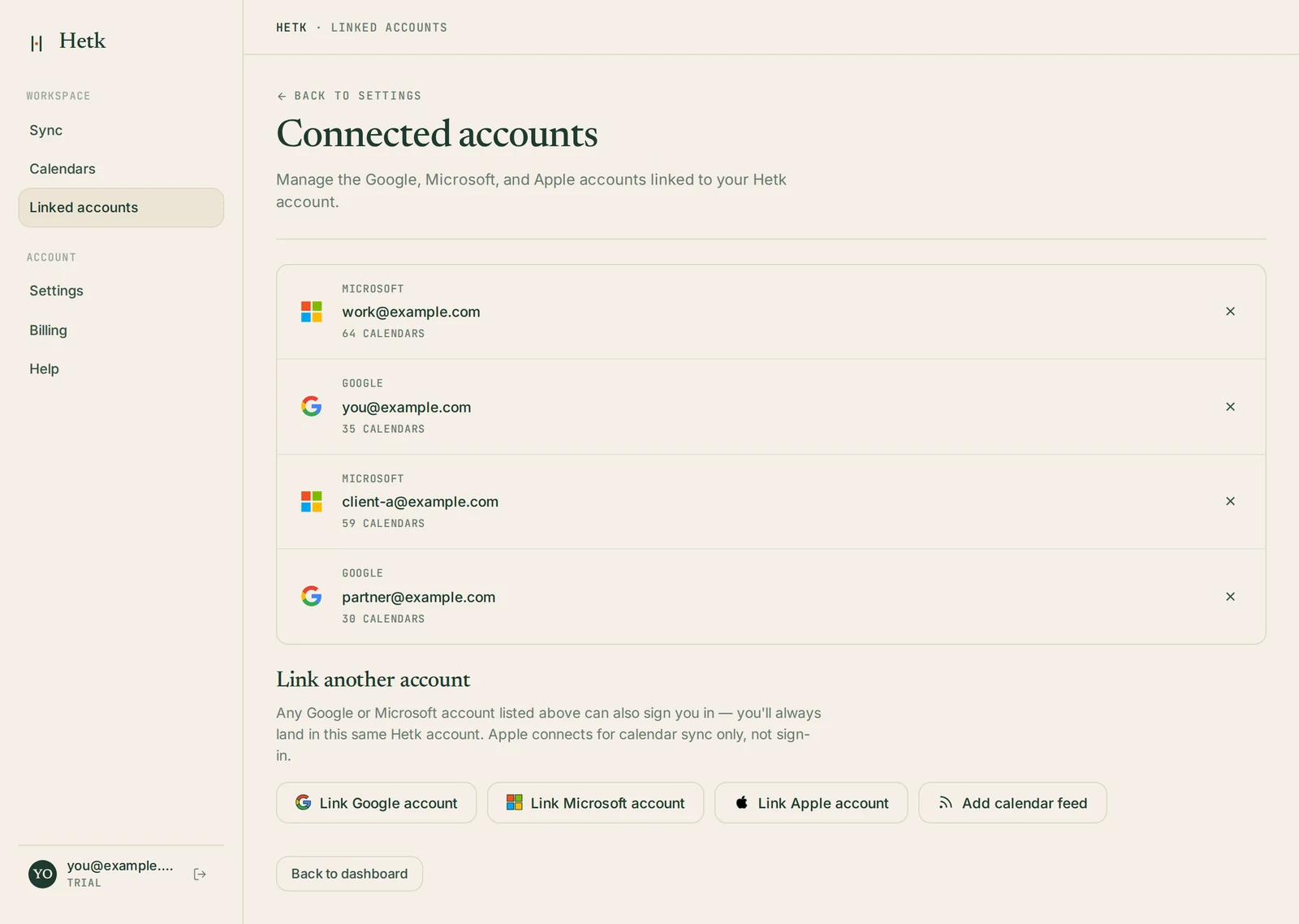
- In Hetk, open Linked accounts in the left menu.
- Under Link another account, choose Link Microsoft account.
- Microsoft opens its own sign-in page. Sign in with that client’s login and approve access for Hetk.
Repeat this for each client. Each account then sits in the list, with a count of its calendars.
Two things to know:
- A client’s IT may have to approve Hetk first. Many companies set up Microsoft 365 so that only an admin can approve a new app. Then you see “Need admin approval” instead of the usual permissions screen. The admin approval guide explains what to send their IT team. If they won’t approve it, that account can’t be linked.
- A linked account can also sign in to your Hetk account. The Linked accounts page says so. So anyone who has that client login can open your Hetk account too. Keep that in mind if a login is shared inside the client’s team.
Step 2: Create one sync per client
- Go to Sync and press New Sync.
- In From, pick the client’s calendar. In To, pick your Google calendar.
- Choose Both ways.
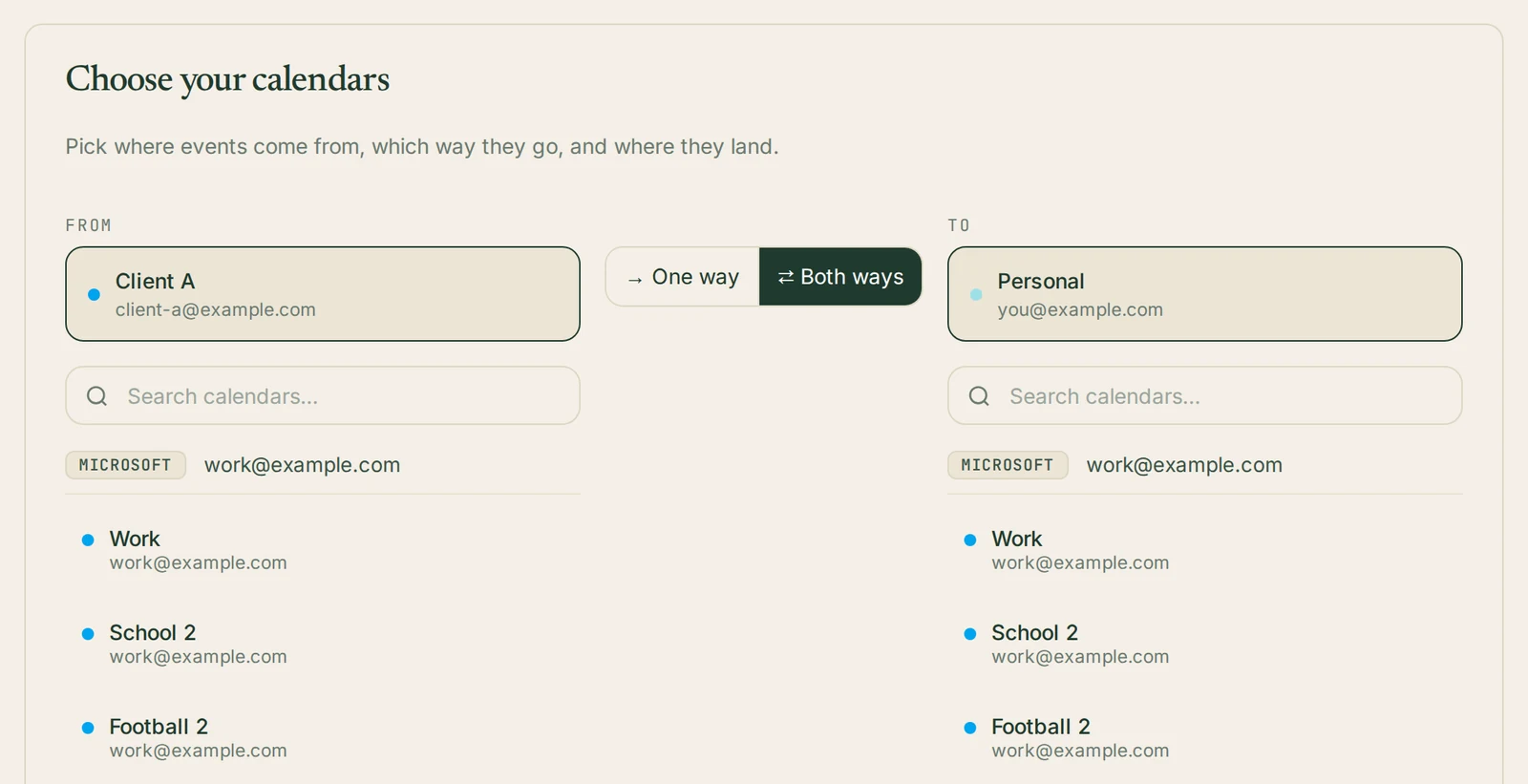
It’s one sync, even though it runs in two directions.
Step 3: Set the privacy for each direction
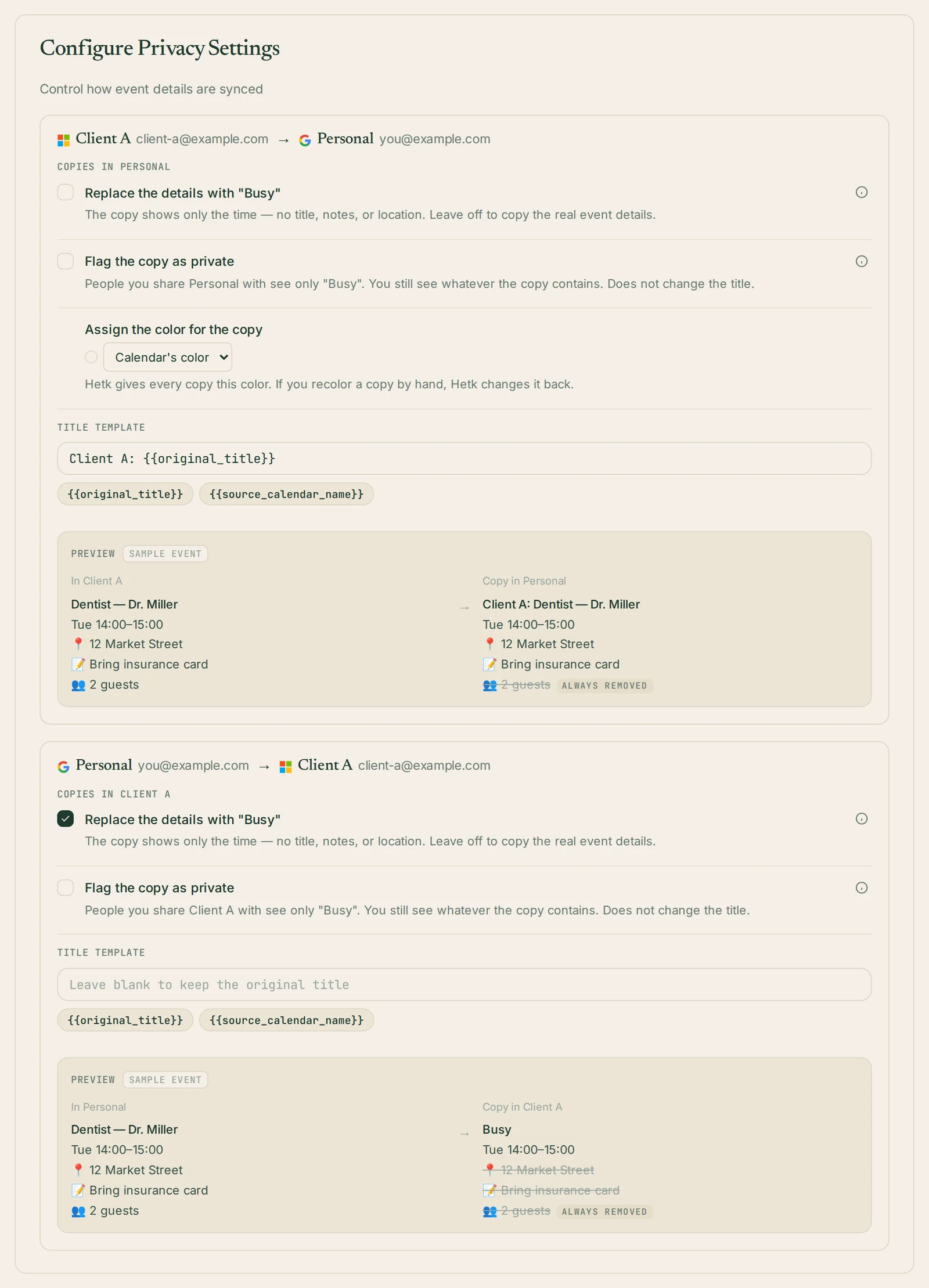
The next step is Configure Privacy Settings. With Both ways, it shows two blocks, one for each direction. Each has its own settings.
Client → Google. These are the copies in your own calendar.
- Leave Replace the details with “Busy” off if you want to see what each meeting is.
- Add a Title template with the client’s name in front of the original title, like “Client A: Workshop”. Then you can tell at a glance whose meeting it is. The post on labelling synced events has more on templates.
- If other people can see your Google calendar, a partner for example, turn Replace the details with “Busy” on here as well.
Google → Client. These are the copies in the client’s calendar.
- Turn on Replace the details with “Busy”. The copy shows only the time. The client sees you are busy, and nothing about what you are doing.
Sometimes the wizard shows a note instead: “Your IT admin has enforced private sync for…” and the client’s domain. That means the client’s IT has decided this for you. The sync will be marked private, and you can’t turn that off.
Whatever you choose, Hetk never copies the guest list. Nobody from one client gets an email address from another client’s meeting.
Step 4: Filters, then create
The third step, Filters, shows a real week from the calendars as Hetk would sync them. If a client has events you don’t need, like an office-wide “Team lunch” or all-day reminders, add a rule to skip them. More on filters here.
The last step, Review & Create, lists what you chose. Press Create and start. Changes in Google Calendar and Outlook usually arrive within minutes, through push notifications. A safety check runs every hour (less often when nothing has changed for a while) in case a notification is missed.
Then do the same for the next client.
Which plan you need
The plan limit is on syncs, not on accounts or calendars. You can link as many accounts as you like. A sync that runs both ways counts as one.
| Plan | Price | Syncs | Clients in this setup |
|---|---|---|---|
| Personal | $15/year or $2/month | up to 3 | up to 3 |
| Professional | $50/year or $6/month | up to 8 | up to 8 |
So with three clients, Personal is enough. Once you have a fourth client, or want other syncs next to this setup, you need Professional.
Every plan starts with a 21-day trial.
When a client project ends
When the work with a client is over, delete that client’s sync. Hetk asks what to do with the copies it made. You can keep them, or let Hetk remove them. Then unlink the client’s account under Linked accounts.
Frequently asked questions
Can one client see what I do for another?
No. Each client sees only “Busy” blocks at the times you are taken. That includes meetings from your other clients, which reach them through Google.
Do I need a separate sync between each pair of clients?
No. One sync per client, each with your Google calendar, is enough.
What if a client uses Google Workspace instead of Microsoft 365?
The setup is the same. Choose Link Google account for that client, and make the sync with your own Google calendar as before.